Don't miss out on important information you have
subscribed to receive ...
So that your emails are not blocked or sent to your junk mail folder follow the simple steps
below for your email reader application
to let emails you have requested bypass your filters and be delivered
direct to your inbox.
Outlook
users (2003/2007/2010) - add us to your Safe Senders list
When you receive our welcome email
1. Open our welcome email or email newsletter in your inbox
2. Click on the blue/grey top bar 'Click here to download pictures
...'
3. Select option 'Add Sender to Safe Senders List'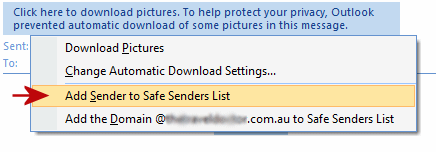
Or...
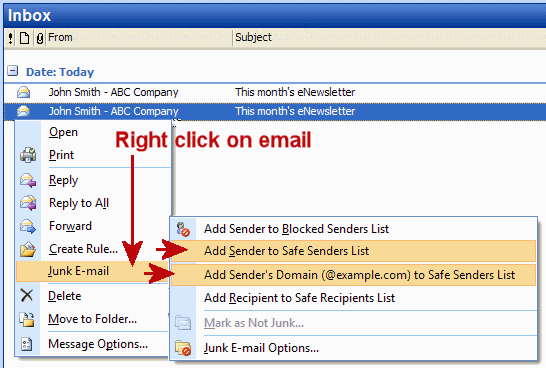
1. Right click on our welcome email or email
newsletter in your inbox or 'Junk E-Mail' folder
2. Choose "Junk E-mail"
from menu
3. Then choose either "Add Sender to Safe Senders List"
or "Add Sender's Domain to Safe Senders List"
(Also
applicable to Outlook Express and Windows Mail)
Or...
1. On the Tools menu,
click 'Options'
2. On the Preferences tab, click 'Junk E-mail'
3. On the Safe Senders tab, click 'Add'
4. In the 'Add address', add our email address
4. Click 'OK'
Hotmail users - add our email address to your Hotmail
Safe Senders list Glems
When you receive our welcome email
1. Open our welcome email or email newsletter in your inbox
2. Select 'Show content' to display email with full images
3. Click on 'Mark as Safe'
Or ...
1. Open your mailbox and click 'Options' (upper right-hand
corner)
2. Go to 'More option' then 'Junk e-mail' (sub heading) and click on 'Safe
and blocked
senders'
3. Then Click on 'Safe senders'
4. Copy and paste our email address into the box
titled 'Sender or domain to mark as safe'
5. Click the 'Add to list' button
If our email is in 'Junk' folder
1. Tick the box next to our email
2. Click on 'Not junk'
Yahoo users - set up a Yahoo Message Filter to
ensure our email is sent direct to your inbox
1. Open your mailbox and click on
'Options' (upper right hand
corner) then select 'Mail Options'
2. Click on the 'Filters' option,
featured on the left hand side menu
3. Click on 'Create or Edit
Filters'
4. Update the 'From header' with the following: 'contains' our
email address e.g. company@atcbiz.com.au (This tells Yahoo to identify our newsletter based on its From address.)
5. Click the 'Choose Folder' pull down menu and select 'Inbox'
6. Click the 'Add Filter' button If our email is in 'Spam' folder
1. Open the email in your 'Spam' folder
2. Click on 'Not Spam' button
3. Full email will be displayed in your inbox
4. Proceed to add our email to your Message Filter following the
above instructions
Gmail users - add our "From address" to your
Contacts List
When you receive our welcome email
|
1. Open our welcome email or email newsletter in your inbox |
|
2. Click on 'Always display images from our email' in the
box above the email |
|
3. Add to 'Contacts' |
|
4. Click 'Contacts' along the left menu of the Gmail page |
 |
|
5. Click on New Contact Icon (scroll over image displays 'New
Contact') |
|
6. Copy and paste our FROM address, e.g. company@atcbiz.com.au into the primary email address
dialog box |
|
7. Click 'Save' |
Is our email in the 'Spam' folder?
1. Click 'Spam' folder along the left side of any Gmail page
2. Tick the box next to our email
3. Click the 'Not spam' button at the top
AOL users - add our "From address" to your
Address Book Glems
When you receive our welcome email
1. Open the email
2. Right click our email address, select 'Add to
Address Book', then click the 'Save'
button
Is our email in your 'Spam' folder? 1. View your
Spam folder by clicking the
'Mail' drop-down menu on the toolbar, then clicking
'Spam Folder'
2. Click on our email to highlight it, then click the
'This is Not Spam' button
3. Then add that email address to your address book or your
Custom Sender List
Thunderbird, Mozilla or Netscape users - add our
"From address" to your Address Book
When you receive our welcome email
1. Click on our highlighted name and email address (sometimes
only the address is shown) on top of the message, next to "From:"
2. Select 'Add to Address Book' from that menu
3. Edit as you see fit
4. Select OK Is our email in your 'Spam' folder? 1.
Right-click on our email and choose "Mark -> As Junk" (or "As Not
Junk").
|

